
How to Cancel Resume Builder Subscription Without Surprises
Stop surprise renewals in minutes. Learn how to cancel resume builder subscription in account settings, billing portals, or support flows—save proof.
 Published by Pika Resume Team|July 27, 2026|9 min read
How to Cancel Resume Builder Subscription Without Surprises
If you need to cancel a resume builder subscription, the safest path is usually in account settings, profile, or the billing portal for the site you actually used. The exact labels vary by provider, so check the welcome email and the latest receipt before you click anything. As of July 2026, the key is to cancel before the next renewal date and keep proof that the subscription ended.
Key takeaways
- The shortest answer is to log in, find account settings, profile, or the billing portal, and cancel before the next renewal date.
- The welcome email and confirmation email matter because the product name on the card statement may not match the page you remember.
- Canceling a subscription is not the same as deleting an account, and deleting an account does not always stop billing.
- If you were renewed after canceling, save screenshots and receipts before you ask support for a refund or dispute the charge.
The fastest way to cancel a resume builder subscription
The shortest answer is to log in to the resume builder account, open account settings or billing, and cancel from there before the next renewal date.
- Sign in to the account that was used to buy the plan.
- Open account settings, profile, subscription management, or billing portal.
- Look for a cancel subscription, pause, or plan management link.
- Follow the prompts until you see a confirmation screen or confirmation email.
If the page names are unclear, use the welcome email to identify the provider first. For many job seekers, a subscription started after trying a free plan that later led into a paid tier, which is why the brand name in the inbox matters more than the logo you remember. If you are comparing whether a free plan is worth keeping at all, our guide to free plan and paywalls explains how those upgrade paths usually work.
Before you cancel: confirm the service, plan, and renewal date
You should confirm the provider, plan, and renewal date before you touch the cancellation button, because the wrong account is the most common way people miss a charge.
- Check the welcome email for the site name, login link, and billing details.
- Open the latest receipt or invoice and note the merchant name.
- Find the renewal date and whether the plan is monthly or annual.
- Confirm whether the account was created with ResumeBuilder.com, Resume.io, CVmaker, or another resume builder.
- Save the receipt or screenshot before you cancel.
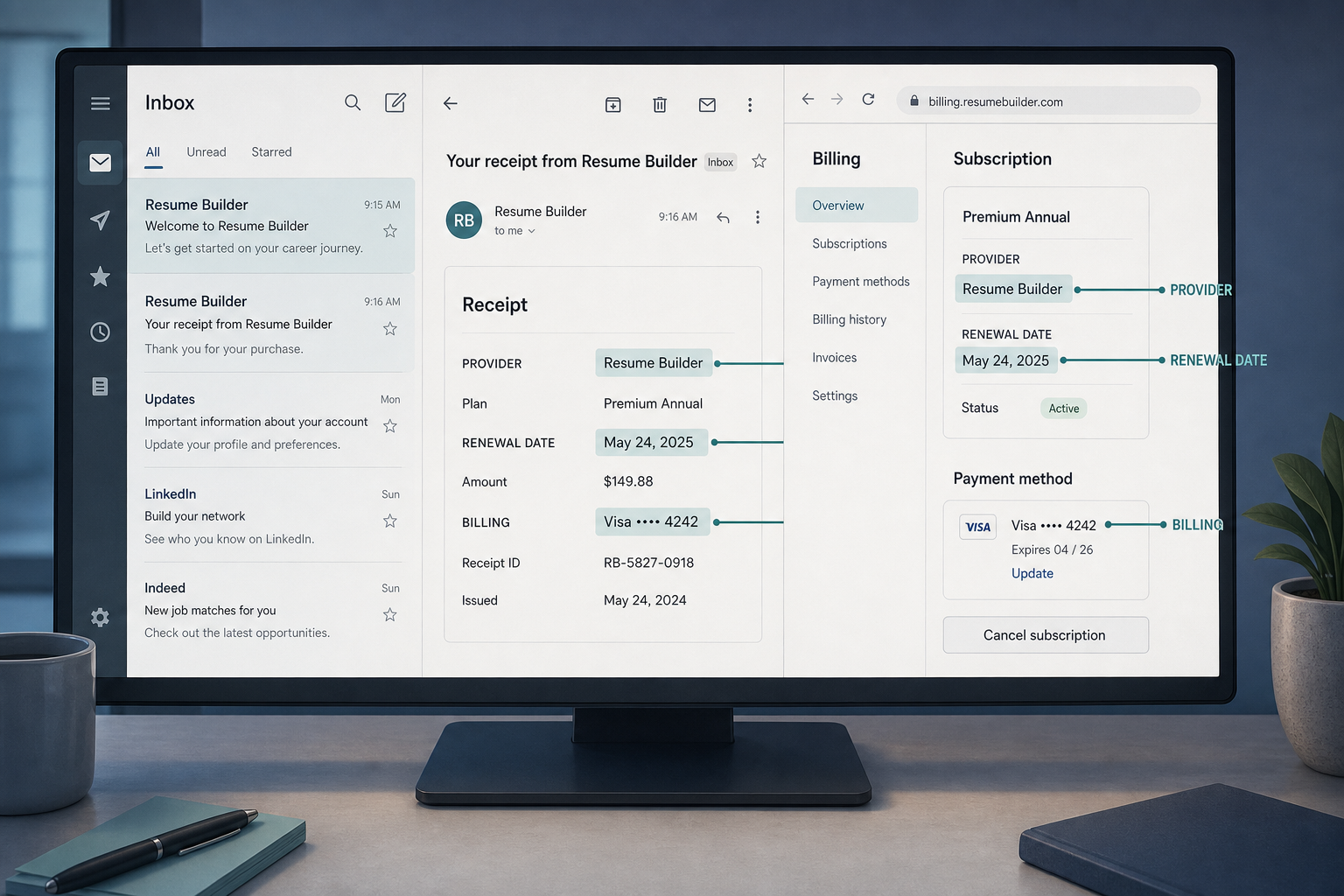
Match the email trail to the billing details before you cancel.
A simple example: if the email says ResumeBuilder.com but the card statement shows a merchant shortcut, the login should still start from the email trail, not the bank app. That is also where you check whether you are on a paid tier or still inside a trial window. If you want a quick refresher on what these tools usually include, see what a resume builder does for job seekers.
How to cancel resume builder subscription in your account
The standard flow is to sign in, open billing or subscription management, and end renewal from the account tied to the charge.
- Log in to the same email address that received the receipt.
- Open account settings or profile.
- Choose subscription management or billing portal.
- Select cancel subscription or the closest plan-management option.
- Read the final screen carefully and look for when cancellation takes effect.
- Save the confirmation email and a screenshot of the success message.
You should see a line that tells you whether access ends immediately or at the end of the billing period. If the site offers export or download options, grab your files before you leave the account. Our guide to download and export options is useful if you want to keep your resume files before the plan lapses.
Tip: If the cancel button opens a chat or support form instead of completing the action, do not close the window until you get a written confirmation.
How do I cancel my resume maker subscription?
The answer is usually the same: sign in, open subscription settings, and cancel renewal from the account page.
Some brands call the product a resume maker, some call it a resume builder, and some hide billing under profile or plan settings. That naming difference is why the welcome email and receipt are more useful than the homepage title. If you are doing this on a phone, check whether the app or mobile browser is the only place the account controls appear; our note on mobile app cancellation covers that split.
If the service uses a trial-to-paid path, the cancel flow may still be the same, but the renewal timing can be different. Cancel before the trial converts if you do not want the first charge.
How do I cancel my resume subscription?
The broad answer is to match the subscription you were charged for, then cancel it in the billing page attached to that charge.
Start with the merchant name on your bank or card statement, then match that to the email address that received the signup receipt. If you cannot find the right login, search your inbox for “welcome,” “receipt,” or the provider name. That is the cleanest way to separate the account you meant to use from the one you forgot you made during a quick signup.
For example, a user who signed up through a browser on a laptop may still need to cancel on the same website, while someone who purchased inside a mobile app may have to use the app store subscription controls instead. Either way, the rule is the same: cancel from the place that handles billing, not the place that only edits the resume.
What to do if you cannot find a cancel button
If there is no cancel button, the service probably wants you to use help centre instructions, live chat, or a support request form.
- Search the help centre for “cancel,” “billing,” or “subscription management.”
- Check whether the company says cancellation must be done on desktop instead of in the app.
- Look for live chat, support email, or a contact form.
- Ask for written confirmation of the cancellation date.
- Keep that message with your receipt and screenshot.
This is the section where many readers discover that the platform is not blocking cancellation, just routing it through support because the account was billed through a different system. If you are unsure whether the service is a free trial, a paid plan, or a hidden upgrade, the pricing page can help you verify the plan type before you ask for help. Our pricing and renewal page is a good checkpoint for that.
Note: ResumeBuilder.com, Resume.io, and CVmaker all use their own account flows, so a button label on one site may not exist on another.
How do I cancel my CV builder subscription?
The process is still to sign in, open billing or subscription management, and stop renewal from the account tied to the charge.
CV builder services often use different menu labels, but the underlying steps are the same. You are still looking for the page that controls payment, not the page that edits content. If the name on the invoice does not match the website exactly, use the email receipt and the card descriptor to confirm you are in the right account.
Keep the focus on ending recurring billing. Deleting the account is a separate action, and it may remove saved documents before you have downloaded them.
Cancel subscription versus delete account: what changes
Canceling a subscription stops future charges, while deleting an account may remove access to saved resumes, cover letters, and profile data.
That difference matters because some services keep the account open until the end of the billing period. Others remove access faster, especially if the account deletion request also wipes stored files. If you want both outcomes, cancel first and download anything you need before you request deletion.
Here is the practical split:
| Action | What it usually stops | What it may remove |
|---|---|---|
| Cancel subscription | Future billing | Usually not your stored files immediately |
| Delete account | Account access and data | Saved resumes, settings, history, and exports |
| Do both | Billing and account access | Depends on the provider’s data policy |
If you only want to stop the charge, cancel the subscription first. If you also want to leave the platform, delete the account after you have your files.
If you were charged again: refund, dispute, and proof checklist
If a charge still appears after cancellation, gather proof first and then contact support with the exact dates.
- Save the cancellation confirmation email.
- Screenshot the success page or plan-status page.
- Save the original receipt and the renewal notice.
- Note the date, amount, and merchant name of the disputed charge.
- Send support the email address used on the account.
If support does not resolve it, contact your card issuer and ask whether the charge can be disputed as an unexpected renewal. The key detail is timing: a charge that posted before cancellation processed may be legitimate under the billing terms, while a charge after confirmed cancellation is the one that usually needs escalation. For broader context on plan limits and hidden paywalls, see free resume builder and download options.
Quick recap and what to save before you leave
The safest cancellation flow is to log in, use account settings or the billing portal, cancel before renewal, and keep proof.
As a final check, save the welcome email, the renewal date, the cancellation screenshot, and the confirmation email in one folder. Then watch the next bank statement to make sure the charge stopped. If the site never shows a clear cancel path, use support and ask for a dated confirmation in writing.
A resume builder subscription should be simple to stop, but the proof is what keeps the surprise charges away.


Create your Resume
Your resume is an extension of you. Make it truly yours.
Related Articles
Related guides & tools
Free AI Resume BuilderBuild a tailored, ATS-friendly resume from scratchFree Resume TemplatesChoose a professional layout for your roleATS Resume CheckerCheck your score, parsing and issues before you applyOnline CV MakerCreate a CV with guided sections and templatesOnline Resume EditorEdit an existing PDF without rebuilding its layoutHobbies for ResumeSkills for ResumeLinkedIn to ResumeResume Examples
Continue Reading
Check more recommended readings to get the job of your dreams.
careerBy Pika Resume Team | Aug 3, 2026
Resume Maker vs Resume Builder: Which Should Job Seekers Use?
By Pika Resume Team | Aug 3, 2026
careerBy Pika Resume Team | Aug 2, 2026
Free Resume Builder and Download vs Microsoft Word
By Pika Resume Team | Aug 2, 2026
careerBy Pika Resume Team | Jul 30, 2026
What Is the Best Resume Builder Website for 2026?
By Pika Resume Team | Jul 30, 2026
careerBy Pika Resume Team | Jul 27, 2026
How to Cancel Resume Builder Subscription Without Surprises
By Pika Resume Team | Jul 27, 2026
careerBy Pika Resume Team | Jul 26, 2026
How Much Is Resume Builder? Free vs Paid Explained
By Pika Resume Team | Jul 26, 2026
careerBy Pika Resume Team | Jul 20, 2026
Resume Builder App: What the Best One Lets You Do
By Pika Resume Team | Jul 20, 2026
careerBy Pika Resume Team | Jul 19, 2026
Free Resume Builder and Download: Compare the Best Options
By Pika Resume Team | Jul 19, 2026
careerBy Pika Resume Team | Jul 16, 2026
Free AI Resume Builder: What It Does Well and Fails At
By Pika Resume Team | Jul 16, 2026
careerBy Pika Resume Team | Jul 13, 2026
Resume format for ATS: a simple guide that works
By Pika Resume Team | Jul 13, 2026
careerBy Pika Resume Team | Jul 12, 2026
Canva Resume Builder vs ATS Reality Check
By Pika Resume Team | Jul 12, 2026
careerBy Pika Resume Team | Jul 9, 2026
Free resume builder: what makes one worth using
By Pika Resume Team | Jul 9, 2026
careerBy Pika Resume Team | Jul 6, 2026
Resume Builder: What It Actually Does for Job Seekers
By Pika Resume Team | Jul 6, 2026
resume tipsBy Pika Resume Team | Jun 20, 2026
The Resume Sections Most People Get Wrong (and How to Fix Each One)
By Pika Resume Team | Jun 20, 2026resume tipsBy Pika Resume Team | Jun 18, 2026
How to Edit a PDF Resume Without Wrecking the Formatting
By Pika Resume Team | Jun 18, 2026resume reviewBy Pika Resume Team | Jun 16, 2026
AI Resume Feedback vs a Human Expert Review: When Each Is Worth It
By Pika Resume Team | Jun 16, 2026atsBy Pika Resume Team | Jun 14, 2026
What an ATS Actually Does to Your Resume (and the 8 Things It Scores)
By Pika Resume Team | Jun 14, 2026resume tipsBy Pika Resume Team | Jun 12, 2026
How to Tailor Your Resume to a Job Description in 2026 (the 3-Pass Method)
By Pika Resume Team | Jun 12, 2026resumeBy Gargi Chaudhari | May 30, 2026
Resume vs Biodata vs CV: Which One Do You Actually Need?
By Gargi Chaudhari | May 30, 2026resume By Astha Narang | May 28, 2026
10 Software Engineer Resume Examples That Got Interviews (2026)
By Astha Narang | May 28, 2026resumeBy Gargi Chaudhari | May 26, 2026
How to Convert a LinkedIn Profile to a Resume or CV
By Gargi Chaudhari | May 26, 2026resumeBy Astha Narang | May 23, 2026
Best Resume Format for Indian IT Services Companies (TCS, Infosys, Wipro, Accenture)
By Astha Narang | May 23, 2026resumeBy Gargi Chaudhari | May 21, 2026
The Complete Guide to ATS Resume Screening in India (2026)
By Gargi Chaudhari | May 21, 2026resumeBy Astha Narang | May 19, 2026
Hobbies and Interests for Resume: Should You Include Them?
By Astha Narang | May 19, 2026resumeBy Gargi Chaudhari | May 14, 2026
How to Write a Resume Headline That Gets Recruiter Calls on Naukri
By Gargi Chaudhari | May 14, 2026interviewBy Astha Narang | May 8, 2026
Decoding Interviewer Psychology: What They Don't Tell You for Your Next Job
By Astha Narang | May 8, 2026resumeBy Gargi Chaudhari | May 7, 2026
Career Objective for Resume: 50+ Fresher Examples (2026)
By Gargi Chaudhari | May 7, 2026resumeBy Astha Narang | May 6, 2026
7 Dangerous ATS Myths Debunked: What Actually Gets You Hired in 2026
By Astha Narang | May 6, 2026resumeBy Astha Narang | May 4, 2026
Master Your Resume: The Ultimate Guide to Listing Computer Skills
By Astha Narang | May 4, 2026resumeBy Astha Narang | Apr 29, 2026
4 Sales Resume Examples for SDR, Account Executive & Manager (2026)
By Astha Narang | Apr 29, 2026resumeBy Astha Narang | Apr 29, 2026
4 Data Analyst Resume Examples for 2026 (Entry-Level to Senior)
By Astha Narang | Apr 29, 2026resumeBy Astha Narang | Apr 24, 2026
Resume Tips for 2026: The Ultimate Guide to Landing Interviews
By Astha Narang | Apr 24, 2026resumeBy Astha Narang | Apr 22, 2026
Bad Resume vs. Good Resume: A Side-by-Side Comparison for Job Seekers
By Astha Narang | Apr 22, 2026resumeBy Astha Narang | Apr 20, 2026
How to Add LinkedIn to Your Resume the Right Way in 2026
By Astha Narang | Apr 20, 2026resumeBy Astha Narang | Apr 17, 2026
7 Common Resume Mistakes to Avoid in 2026 (and How to Fix Them)
By Astha Narang | Apr 17, 2026resumeBy Pika Resume Team | Apr 15, 2026
Master Your LinkedIn-to-Resume Link: A 2026 Guide for Top Candidates
By Pika Resume Team | Apr 15, 2026resumeBy Astha Narang | Apr 13, 2026
How to Write a Winning Resume Summary That Grabs Recruiter Attention
By Astha Narang | Apr 13, 2026careerBy Astha Narang | Apr 11, 2026
Owning Your Career Break: How to Frame a Gap Year on Your Resume in 2026
By Astha Narang | Apr 11, 2026resumeBy Astha Narang | Apr 8, 2026
The Complete 2026 Resume Guide: Crafting a Job-Winning Document
By Astha Narang | Apr 8, 2026resumeBy Astha Narang | Apr 4, 2026
Beat the ATS: Optimize Your Resume for Applicant Tracking Systems in 2026
By Astha Narang | Apr 4, 2026resumeBy Astha Narang | Mar 30, 2026
Expert Resume Review: Is It Worth the Investment for Your Career?
By Astha Narang | Mar 30, 2026resumeBy Astha Narang | Mar 25, 2026
Master the 30-Second Resume Scan: Expert & Recruiter Insights
By Astha Narang | Mar 25, 2026resumeBy Astha Narang | Mar 24, 2026
How to Explain Employment Gaps on Your Resume & Ace Interviews
By Astha Narang | Mar 24, 2026resumeBy Astha Narang | Mar 20, 2026
Master Resume Keywords: Your Guide to ATS Success
By Astha Narang | Mar 20, 2026careerBy Astha Narang | Mar 18, 2026
How to Stand Out in Interviews While Still Being Authentic
By Astha Narang | Mar 18, 2026careerBy Astha Narang | Mar 14, 2026
Why Sending the Same Resume to Every Job is Costing You Interviews
By Astha Narang | Mar 14, 2026resumeBy Astha Narang | Mar 12, 2026
The Dynamic Duo: Why AI + Human Expertise is the 2026 Career Cheat Code
By Astha Narang | Mar 12, 2026careerBy Astha Narang | Mar 9, 2026
Get Your Resume Roasted Using PIKA AI
By Astha Narang | Mar 9, 2026jobBy Astha Narang | Mar 7, 2026
How to Show a Promotion on Your Resume? (And Why Most People Get It Wrong)
By Astha Narang | Mar 7, 2026careerBy Astha Narang | Mar 6, 2026
Should You Put Your Address on Your Resume in 2026?
By Astha Narang | Mar 6, 2026careerBy Astha Narang | Mar 3, 2026
Is It Illegal to Lie on a Resume? What Actually Happens in 2026
By Astha Narang | Mar 3, 2026jobBy Pika Resume Team | Feb 5, 2026
How to Optimize Your Resume for Remote Job Applications
By Pika Resume Team | Feb 5, 2026interviewBy Pika Resume Team | Feb 1, 2026
How to Write an ATS-Friendly Resume in 2026
By Pika Resume Team | Feb 1, 2026cover-letterBy Pika Resume Team | Jan 25, 2026
Top 7 Cover Letter Mistakes That Cost You the Interview
By Pika Resume Team | Jan 25, 2026resumeBy Pika Resume Team | Jan 18, 2026
AI Resume Builders: A Complete Guide for Job Seekers in 2026
By Pika Resume Team | Jan 18, 2026jobBy Pika Resume Team | Jan 10, 2026
Resume Tips for Career Changers: Making a Smooth Transition
By Pika Resume Team | Jan 10, 2026careerBy Pika Resume Team | Jan 3, 2026
The Power of Keywords in Your Resume: An SEO Approach to Job Applications
By Pika Resume Team | Jan 3, 2026