
Canva Resume Builder vs ATS Reality Check
Canva can pass ATS when the layout stays simple. See where PDF vs DOCX matters, which formatting breaks parsing, and when to avoid it.
 Published by Pika Resume Team|July 12, 2026|10 min read
Canva Resume Builder vs ATS Reality Check
As of July 2026, the canva resume builder can work for Applicant Tracking Systems, but only when the file stays simple and the text exports cleanly. The issue is not Canva itself. The issue is structure: once a resume depends on columns, icons, text boxes, or decorative spacing, ATS parsing becomes less reliable.
Key takeaways
- A Canva resume can be ATS-safe if the layout is plain, the text is selectable, and the export order is preserved.
- PDF usually preserves design better, while DOCX is often easier for ATS to parse.
- The biggest risks are columns, tables, graphics, and hidden text order.
- If the job application is strict about parsing, a text-first workflow is safer than a design-first one.
Can ATS read a Canva resume?
The canva resume builder can produce a resume that ATS reads correctly, but only if the template is stripped down and exported carefully. A simple, single-column resume with standard headings usually gives ATS a better chance of reading your work history in the right order than a design-heavy version built to impress a human first.
That is the real rule behind canva resume ats concerns. ATS compatibility is about whether a system can extract your name, job titles, dates, and bullet points in a clean sequence. It is not about whether the resume looks polished on screen.
If you want the broader builder context first, this is the same basic trade-off discussed in our resume builder basics: convenience versus control. Canva gives you design control. ATS wants structure.
How Applicant Tracking Systems read a resume
Applicant Tracking Systems do not read a resume the way a recruiter does. They extract text, identify fields, and rebuild the document into a database-friendly format before anyone reviews it. That means the machine is looking for structure: section titles, chronological order, contact details, and keywords that match the job.
The practical issue is that ATS tools often reconstruct content from the page layout, not from your intention. A two-column resume can cause the parser to read the left side first, then jump awkwardly to the right side, or merge sections in a way that scrambles context. Text boxes, icons, and decorative shapes can create the same problem because the system may find the words, but not in the order you expect.
This is why ats resume compatibility is less about the tool you use and more about how the document is built. A plain resume in Word, a clean DOCX export, or a simple PDF can all parse well. A visually busy file from any builder can fail.
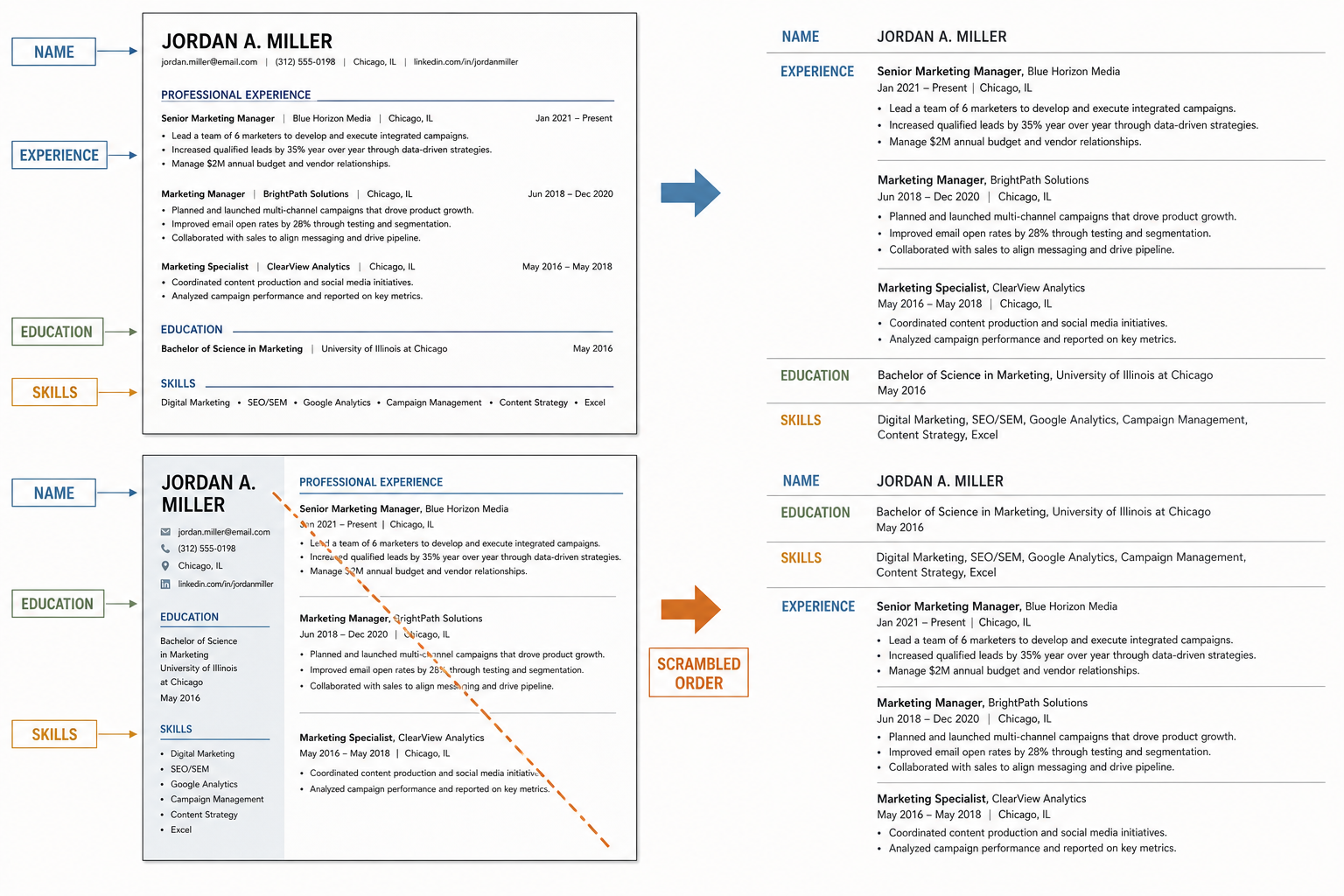
ATS follows text structure, not visual intent.
What makes a Canva resume ATS-friendly or ATS-unfriendly
A ats friendly resume template in Canva usually follows one rule: keep the reading path obvious. Single column, standard section labels, consistent dates, and minimal decoration give the parser a better shot at reconstructing the resume correctly. If the resume still looks clean when stripped of design, it is usually on safer ground.
A Canva resume becomes risky when it depends on layout tricks. Tables can split related information across cells. Sidebars can separate skills from work history in a way that makes the order unclear. Icons can replace labels the ATS needs to see as text. Heavy graphics can also push important content into a visual layer that the parser does not handle well.
The main question is not whether the resume is pretty. It is whether the text survives as text. That is the difference between a strong resume formatting for ats approach and a template that only works for a human viewing the final page.
Here is a quick audit of the design choices that matter most:
- Use one column for core content.
- Keep section headings standard, such as Experience, Education, Skills.
- Keep contact details in plain text, not icons.
- Avoid text embedded in shapes or image elements.
- Keep fonts simple and highly legible.
- Make sure bullet points stay in the right order after export.
Tip: If you can copy the resume text into a plain text editor and still understand the order instantly, you are much closer to ATS-safe formatting.
PDF vs DOCX: which export is safer for ATS?
For most job seekers, PDF preserves design better and DOCX gives ATS a cleaner text structure to work with. That does not mean PDF is bad. It means PDF is the format where visual layout is more likely to survive, while DOCX is often the format where parsing is more predictable.
| Criterion | DOCX | |
|---|---|---|
| Visual fidelity | Usually strongest | Can shift slightly by viewer |
| ATS parsing | Often good if simple, less reliable if complex | Often easier to parse |
| Layout safety | Better for final presentation | Better for structure-first editing |
| Best use case | Clean, single-column Canva export | ATS-first workflow and text-heavy edits |
| Risk level | Higher with columns, shapes, or graphics | Lower if the content stays linear |
If you are deciding between PDF vs DOCX for ats resumes, the safer rule is simple: use DOCX when the application system is strict and the template is plain, then use PDF when you know the layout is clean and the employer wants a finished-looking file. Adobe Acrobat can help you package or inspect a PDF, but it does not magically fix a layout that was hard to parse in the first place. Microsoft Word remains the easiest baseline for a text-first resume because the structure is naturally linear.
For readers comparing tools more broadly, this is also where our free builder trade-offs become relevant. A free builder is only useful if it exports cleanly.
Common parsing issues with Canva resumes
The most common resume builder for ats failures come from layout, not content. If ATS misses something, the usual cause is that the text was placed in a way the parser could not follow cleanly.
Multi-column layouts are the biggest problem. They can make experience bullets, skills, and education appear in the wrong order. A recruiter sees a polished page. The parser sees two streams of text that do not agree on sequence.
Tables and graphics create a different failure mode. Table cells can separate a job title from its dates, and icons can hide labels such as phone, email, or location. Text placed inside shapes can also be treated as a visual object instead of a document line, which makes it more likely to be skipped or misread.
Footers, headers, and stylised labels matter too. If your name, contact details, or section titles live in decorative areas, some systems may deprioritise them or miss them entirely. That is why the cleanest canva resume ats approach is usually boring on purpose: plain headings, plain bullets, plain chronology.
Canva Resume Builder vs Microsoft Word, Adobe Acrobat, and Jobscan
Canva, Word, Acrobat, and Jobscan solve different parts of the same problem. Canva is strongest when you want design control and quick layout choices. Microsoft Word is stronger when you want a structure that is naturally easy for ATS to read. Adobe Acrobat is useful at the end of the process when you want to inspect or finalise a PDF. Jobscan is useful when you want to test whether the resume matches a specific job description.
For a practical workflow, think of them this way:
- Microsoft Word for the safest text-first draft.
- Canva Resume Builder for visual polish, if the template stays simple.
- Adobe Acrobat for final PDF handling.
- Jobscan for keyword alignment and ATS-style checks.
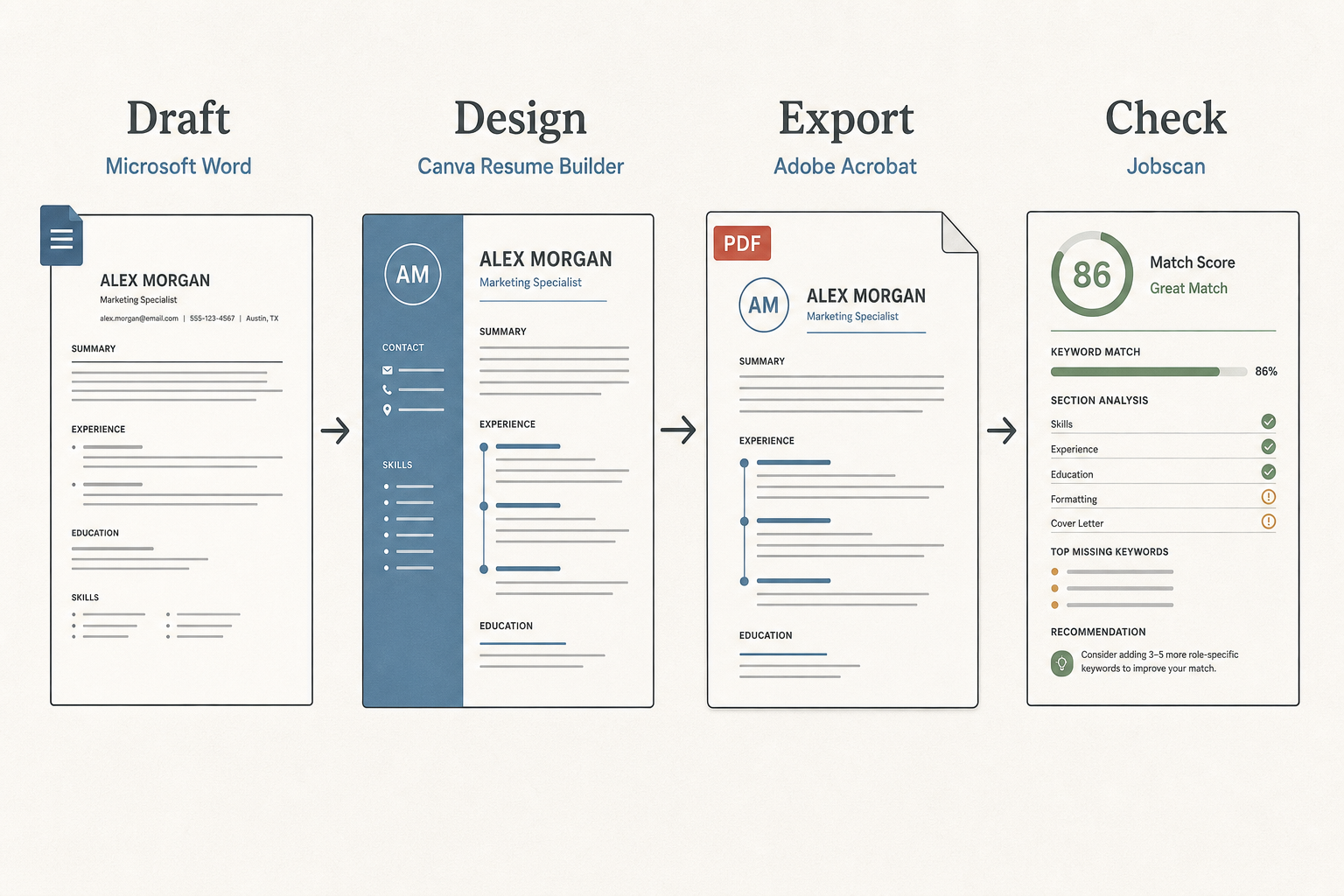
Each tool solves a different step in the resume process.
If you are choosing between Canva and a more ATS-focused builder, the comparison gets clearer when you look at the end result, not the editor. Our Canva comparison section and broader builder comparison context cover that workflow angle in more detail. The point here is narrower: the best-looking editor is not always the safest parser output.
When a Canva resume is acceptable and when to avoid it
A Canva resume is acceptable when the template is simple, the text is selectable, and the exported file opens with the same reading order you intended. That makes it a workable choice for many applications, especially when the role is reviewed by a person quickly after the ATS screen.
Avoid Canva when the job application feels strict, the employer emphasises automation, or the template relies on heavy visual structure. If the posting asks for maximum compatibility, a plain DOCX or a text-first resume is the lower-risk choice. This is especially true when the role is likely to be screened by systems such as Greenhouse, Lever, Workday, or Taleo, where clean parsing matters more than design polish.
The best distinction is this: Canva is fine for human-facing presentation, but it is only safe for machine-facing screening when the layout behaves like a document, not a poster. If you want an alternative workflow that stays more ATS-focused from the start, the main Pika Resume homepage is the faster route.
A quick checklist before you submit
Use this ats resume compatibility checklist before you upload anything:
- Copy the text into a plain editor and confirm the reading order makes sense.
- Check that your name, email, phone number, and LinkedIn are plain text.
- Remove tables, icons, sidebars, and text hidden inside shapes.
- Keep headings standard and easy to detect.
- Use a simple font that survives export cleanly.
- Reopen the file after export and make sure nothing shifted.
- If possible, test both the PDF and DOCX version.
- Compare the resume against the job description without stuffing keywords.
If the file passes those checks, the canva resume builder output is much less likely to trip up ATS parsing. If it fails even one of them, the design is probably doing more work than the document structure can support.
Frequently asked questions
Will ATS read my Canva resume?
Yes, if the resume is simple and exported in a clean format, but not always if the layout uses columns, graphics, or text boxes. ATS usually reads selectable text best when the document has a clear top-to-bottom structure. If the file looks beautiful but the content order becomes confusing when copied into plain text, parsing is at risk.
Is Canva bad for ATS?
No, Canva is not automatically bad for ATS. A minimal, single-column Canva template can be fine. The risk starts when the design prioritises visual effect over document structure, because ATS is built to extract text and fields, not interpret design intent.
Should I export my Canva resume as PDF or DOCX?
Use DOCX when you want the safest parsing path and PDF when you want to preserve the visual layout. DOCX is usually easier for ATS to interpret, while PDF is often better for keeping the page exactly as designed. If the Canva template is complex, neither format fully fixes the structure problem.


Create your Resume
Your resume is an extension of you. Make it truly yours.
Related Articles
Related guides & tools
Free AI Resume BuilderBuild a tailored, ATS-friendly resume from scratchFree Resume TemplatesChoose a professional layout for your roleATS Resume CheckerCheck your score, parsing and issues before you applyOnline CV MakerCreate a CV with guided sections and templatesOnline Resume EditorEdit an existing PDF without rebuilding its layoutHobbies for ResumeSkills for ResumeLinkedIn to ResumeResume Examples
Continue Reading
Check more recommended readings to get the job of your dreams.
careerBy Pika Resume Team | Aug 3, 2026
Resume Maker vs Resume Builder: Which Should Job Seekers Use?
By Pika Resume Team | Aug 3, 2026
careerBy Pika Resume Team | Aug 2, 2026
Free Resume Builder and Download vs Microsoft Word
By Pika Resume Team | Aug 2, 2026
careerBy Pika Resume Team | Jul 30, 2026
What Is the Best Resume Builder Website for 2026?
By Pika Resume Team | Jul 30, 2026
careerBy Pika Resume Team | Jul 27, 2026
How to Cancel Resume Builder Subscription Without Surprises
By Pika Resume Team | Jul 27, 2026
careerBy Pika Resume Team | Jul 26, 2026
How Much Is Resume Builder? Free vs Paid Explained
By Pika Resume Team | Jul 26, 2026
careerBy Pika Resume Team | Jul 20, 2026
Resume Builder App: What the Best One Lets You Do
By Pika Resume Team | Jul 20, 2026
careerBy Pika Resume Team | Jul 19, 2026
Free Resume Builder and Download: Compare the Best Options
By Pika Resume Team | Jul 19, 2026
careerBy Pika Resume Team | Jul 16, 2026
Free AI Resume Builder: What It Does Well and Fails At
By Pika Resume Team | Jul 16, 2026
careerBy Pika Resume Team | Jul 13, 2026
Resume format for ATS: a simple guide that works
By Pika Resume Team | Jul 13, 2026
careerBy Pika Resume Team | Jul 12, 2026
Canva Resume Builder vs ATS Reality Check
By Pika Resume Team | Jul 12, 2026
careerBy Pika Resume Team | Jul 9, 2026
Free resume builder: what makes one worth using
By Pika Resume Team | Jul 9, 2026
careerBy Pika Resume Team | Jul 6, 2026
Resume Builder: What It Actually Does for Job Seekers
By Pika Resume Team | Jul 6, 2026
resume tipsBy Pika Resume Team | Jun 20, 2026
The Resume Sections Most People Get Wrong (and How to Fix Each One)
By Pika Resume Team | Jun 20, 2026resume tipsBy Pika Resume Team | Jun 18, 2026
How to Edit a PDF Resume Without Wrecking the Formatting
By Pika Resume Team | Jun 18, 2026resume reviewBy Pika Resume Team | Jun 16, 2026
AI Resume Feedback vs a Human Expert Review: When Each Is Worth It
By Pika Resume Team | Jun 16, 2026atsBy Pika Resume Team | Jun 14, 2026
What an ATS Actually Does to Your Resume (and the 8 Things It Scores)
By Pika Resume Team | Jun 14, 2026resume tipsBy Pika Resume Team | Jun 12, 2026
How to Tailor Your Resume to a Job Description in 2026 (the 3-Pass Method)
By Pika Resume Team | Jun 12, 2026resumeBy Gargi Chaudhari | May 30, 2026
Resume vs Biodata vs CV: Which One Do You Actually Need?
By Gargi Chaudhari | May 30, 2026resume By Astha Narang | May 28, 2026
10 Software Engineer Resume Examples That Got Interviews (2026)
By Astha Narang | May 28, 2026resumeBy Gargi Chaudhari | May 26, 2026
How to Convert a LinkedIn Profile to a Resume or CV
By Gargi Chaudhari | May 26, 2026resumeBy Astha Narang | May 23, 2026
Best Resume Format for Indian IT Services Companies (TCS, Infosys, Wipro, Accenture)
By Astha Narang | May 23, 2026resumeBy Gargi Chaudhari | May 21, 2026
The Complete Guide to ATS Resume Screening in India (2026)
By Gargi Chaudhari | May 21, 2026resumeBy Astha Narang | May 19, 2026
Hobbies and Interests for Resume: Should You Include Them?
By Astha Narang | May 19, 2026resumeBy Gargi Chaudhari | May 14, 2026
How to Write a Resume Headline That Gets Recruiter Calls on Naukri
By Gargi Chaudhari | May 14, 2026interviewBy Astha Narang | May 8, 2026
Decoding Interviewer Psychology: What They Don't Tell You for Your Next Job
By Astha Narang | May 8, 2026resumeBy Gargi Chaudhari | May 7, 2026
Career Objective for Resume: 50+ Fresher Examples (2026)
By Gargi Chaudhari | May 7, 2026resumeBy Astha Narang | May 6, 2026
7 Dangerous ATS Myths Debunked: What Actually Gets You Hired in 2026
By Astha Narang | May 6, 2026resumeBy Astha Narang | May 4, 2026
Master Your Resume: The Ultimate Guide to Listing Computer Skills
By Astha Narang | May 4, 2026resumeBy Astha Narang | Apr 29, 2026
4 Sales Resume Examples for SDR, Account Executive & Manager (2026)
By Astha Narang | Apr 29, 2026resumeBy Astha Narang | Apr 29, 2026
4 Data Analyst Resume Examples for 2026 (Entry-Level to Senior)
By Astha Narang | Apr 29, 2026resumeBy Astha Narang | Apr 24, 2026
Resume Tips for 2026: The Ultimate Guide to Landing Interviews
By Astha Narang | Apr 24, 2026resumeBy Astha Narang | Apr 22, 2026
Bad Resume vs. Good Resume: A Side-by-Side Comparison for Job Seekers
By Astha Narang | Apr 22, 2026resumeBy Astha Narang | Apr 20, 2026
How to Add LinkedIn to Your Resume the Right Way in 2026
By Astha Narang | Apr 20, 2026resumeBy Astha Narang | Apr 17, 2026
7 Common Resume Mistakes to Avoid in 2026 (and How to Fix Them)
By Astha Narang | Apr 17, 2026resumeBy Pika Resume Team | Apr 15, 2026
Master Your LinkedIn-to-Resume Link: A 2026 Guide for Top Candidates
By Pika Resume Team | Apr 15, 2026resumeBy Astha Narang | Apr 13, 2026
How to Write a Winning Resume Summary That Grabs Recruiter Attention
By Astha Narang | Apr 13, 2026careerBy Astha Narang | Apr 11, 2026
Owning Your Career Break: How to Frame a Gap Year on Your Resume in 2026
By Astha Narang | Apr 11, 2026resumeBy Astha Narang | Apr 8, 2026
The Complete 2026 Resume Guide: Crafting a Job-Winning Document
By Astha Narang | Apr 8, 2026resumeBy Astha Narang | Apr 4, 2026
Beat the ATS: Optimize Your Resume for Applicant Tracking Systems in 2026
By Astha Narang | Apr 4, 2026resumeBy Astha Narang | Mar 30, 2026
Expert Resume Review: Is It Worth the Investment for Your Career?
By Astha Narang | Mar 30, 2026resumeBy Astha Narang | Mar 25, 2026
Master the 30-Second Resume Scan: Expert & Recruiter Insights
By Astha Narang | Mar 25, 2026resumeBy Astha Narang | Mar 24, 2026
How to Explain Employment Gaps on Your Resume & Ace Interviews
By Astha Narang | Mar 24, 2026resumeBy Astha Narang | Mar 20, 2026
Master Resume Keywords: Your Guide to ATS Success
By Astha Narang | Mar 20, 2026careerBy Astha Narang | Mar 18, 2026
How to Stand Out in Interviews While Still Being Authentic
By Astha Narang | Mar 18, 2026careerBy Astha Narang | Mar 14, 2026
Why Sending the Same Resume to Every Job is Costing You Interviews
By Astha Narang | Mar 14, 2026resumeBy Astha Narang | Mar 12, 2026
The Dynamic Duo: Why AI + Human Expertise is the 2026 Career Cheat Code
By Astha Narang | Mar 12, 2026careerBy Astha Narang | Mar 9, 2026
Get Your Resume Roasted Using PIKA AI
By Astha Narang | Mar 9, 2026jobBy Astha Narang | Mar 7, 2026
How to Show a Promotion on Your Resume? (And Why Most People Get It Wrong)
By Astha Narang | Mar 7, 2026careerBy Astha Narang | Mar 6, 2026
Should You Put Your Address on Your Resume in 2026?
By Astha Narang | Mar 6, 2026careerBy Astha Narang | Mar 3, 2026
Is It Illegal to Lie on a Resume? What Actually Happens in 2026
By Astha Narang | Mar 3, 2026jobBy Pika Resume Team | Feb 5, 2026
How to Optimize Your Resume for Remote Job Applications
By Pika Resume Team | Feb 5, 2026interviewBy Pika Resume Team | Feb 1, 2026
How to Write an ATS-Friendly Resume in 2026
By Pika Resume Team | Feb 1, 2026cover-letterBy Pika Resume Team | Jan 25, 2026
Top 7 Cover Letter Mistakes That Cost You the Interview
By Pika Resume Team | Jan 25, 2026resumeBy Pika Resume Team | Jan 18, 2026
AI Resume Builders: A Complete Guide for Job Seekers in 2026
By Pika Resume Team | Jan 18, 2026jobBy Pika Resume Team | Jan 10, 2026
Resume Tips for Career Changers: Making a Smooth Transition
By Pika Resume Team | Jan 10, 2026careerBy Pika Resume Team | Jan 3, 2026
The Power of Keywords in Your Resume: An SEO Approach to Job Applications
By Pika Resume Team | Jan 3, 2026